SearchShifter™

Set up your site for AI visibility in 4 steps

Complete these steps and validate your setup to ensure AI systems can understand, trust, and use your content

  • Start here to complete your SearchShifter™ setup correctly
  • Watch the walkthrough first, then use the steps below if you need extra guidance

STEP

1

Install and Validate Setup

Activate the plugin, then check your setup inside the SearchShifter™ plugin to ensure everything is configured correctly

Open the plugin setup page

Need help? View setup guide

Plugin is installed and activated

Once complete, move to step 2

Continue to the next step to validate your setup

What you should see in Step 1

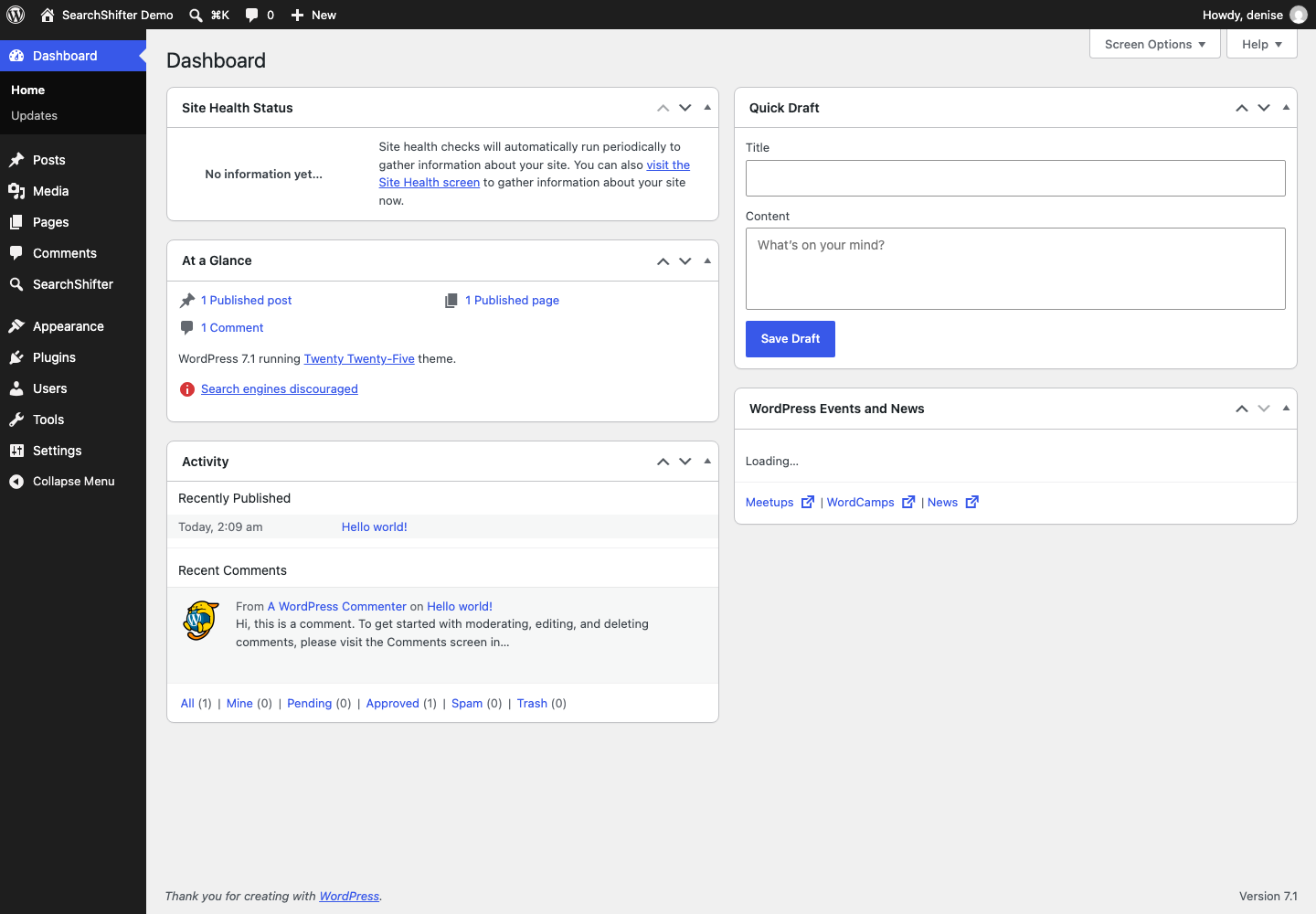
WordPress dashboard showing site health status, quick draft editor, and recent activity with published posts and comments
SearchShifter appears in the left-hand WordPress menu as soon as the plugin is activated.
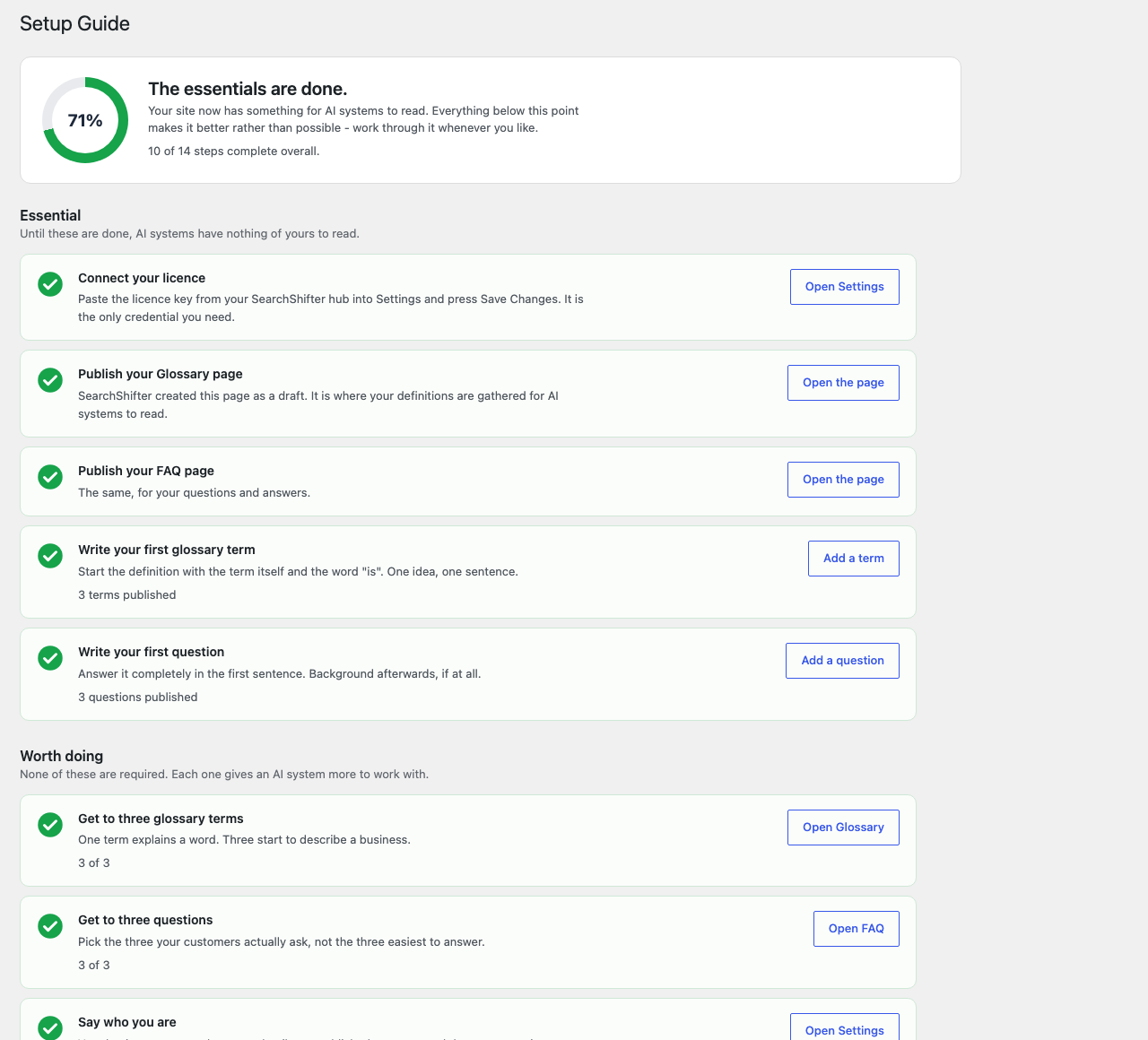
Setup guide showing 71% completion with essential and optional tasks for configuring an AI system, including glossary and FAQ setup steps.
The Setup Guide checks your site and shows exactly what is done and what is left. Every item is tested against the site itself, so it cannot report something as finished when it is not.
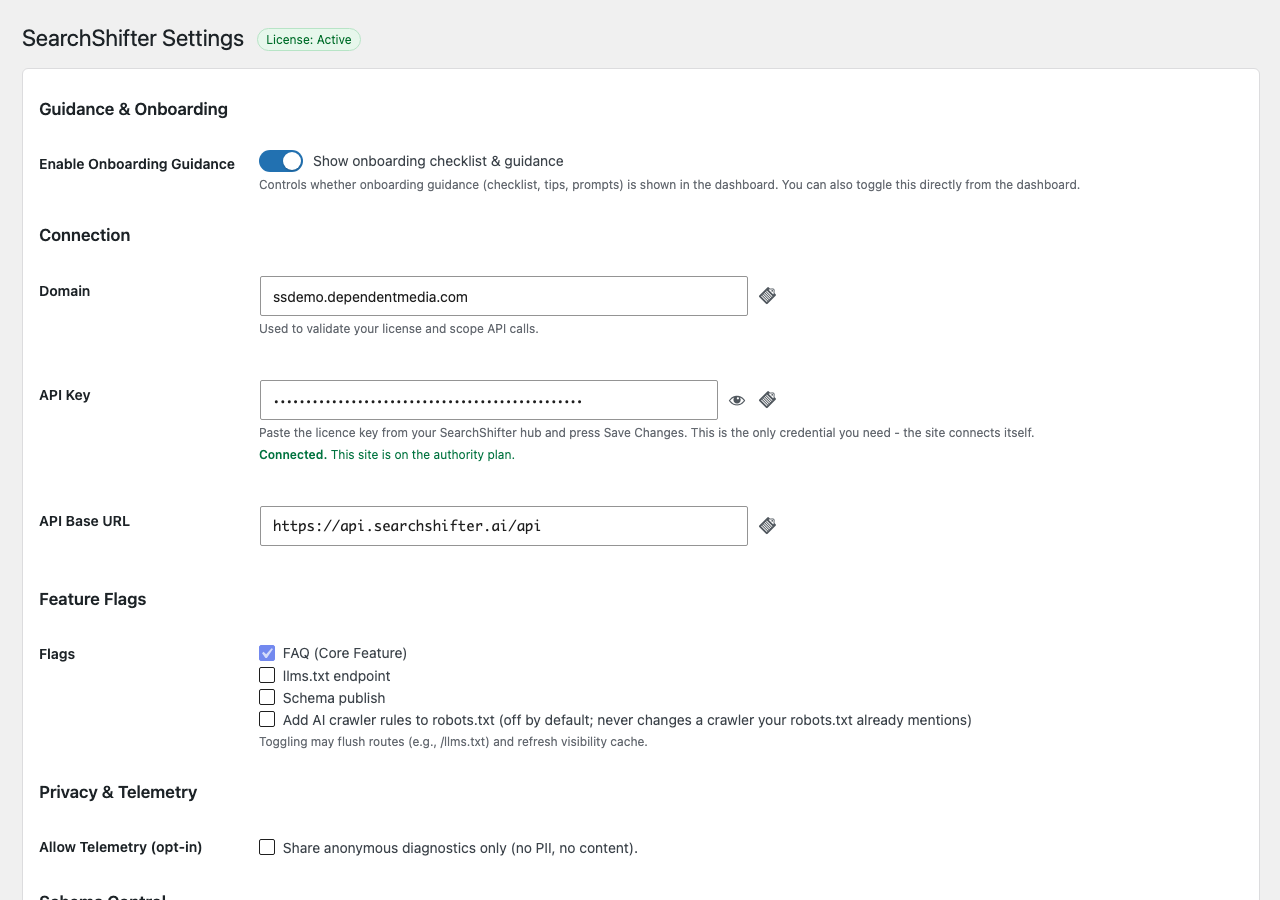
SearchShifter Settings page showing connection configuration with domain, API key, and API base URL fields, plus guidance and onboarding options
Paste your licence key into API Key and press Save Changes. The screen then confirms "Connected" and shows your plan. The licence key is the only credential you need - the site connects itself.

After SearchShifter™ plugin is installed and activated follow these steps :

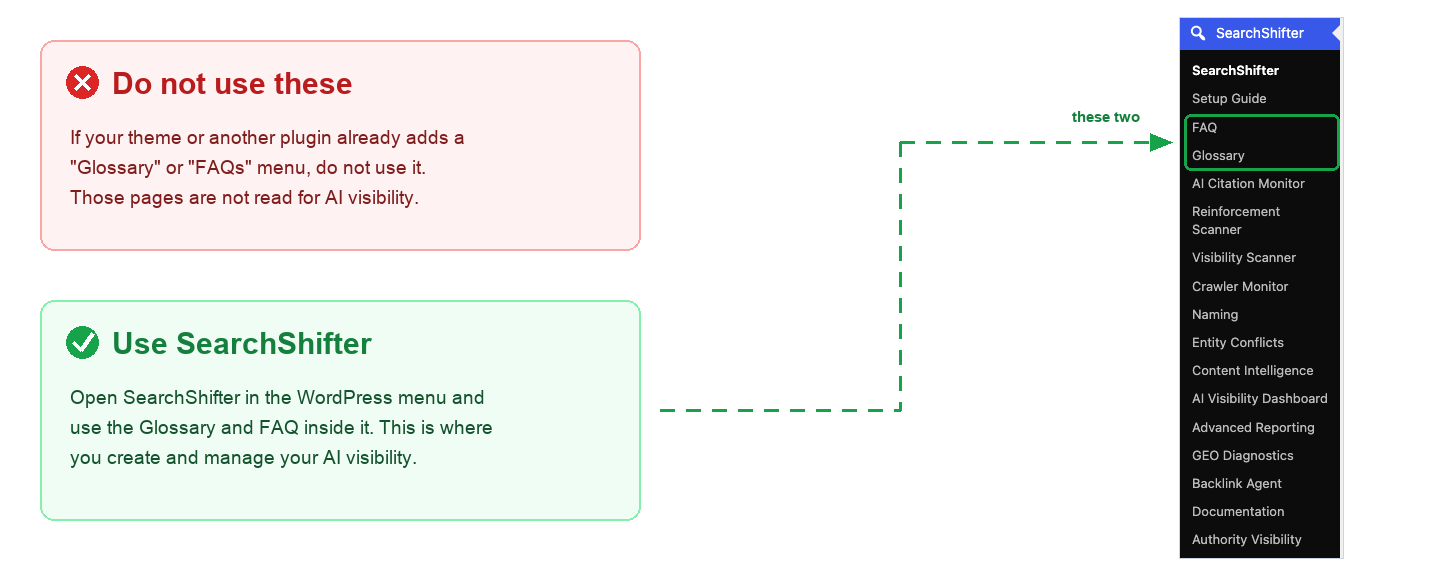
Two comparison panels showing correct and incorrect glossary setup methods for WordPress SEO plugin configuration

STEP

2

Write your first Glossary terms

Create and define the key terms for your business

Rule 1 : Start with the term and define it using "is"

Begin the first sentence with the term and state exactly what it is using “is”

Rule 2 : Define one concept in one sentence

Write one idea that explains what the term is. Do not replace or vary the wording

Rule 3 : Use the same wording everywhere

Write the definition once and replace it exactly across your site. Do not rephrase or vary the wording

Stop and Confirm

You opened this page from the SearchShifter™ plugin. If not, go back and open it there

You should see them

A page titled "SearchShifter™ Glossary" inside your WordPress dashboard

What you should see in Step 2

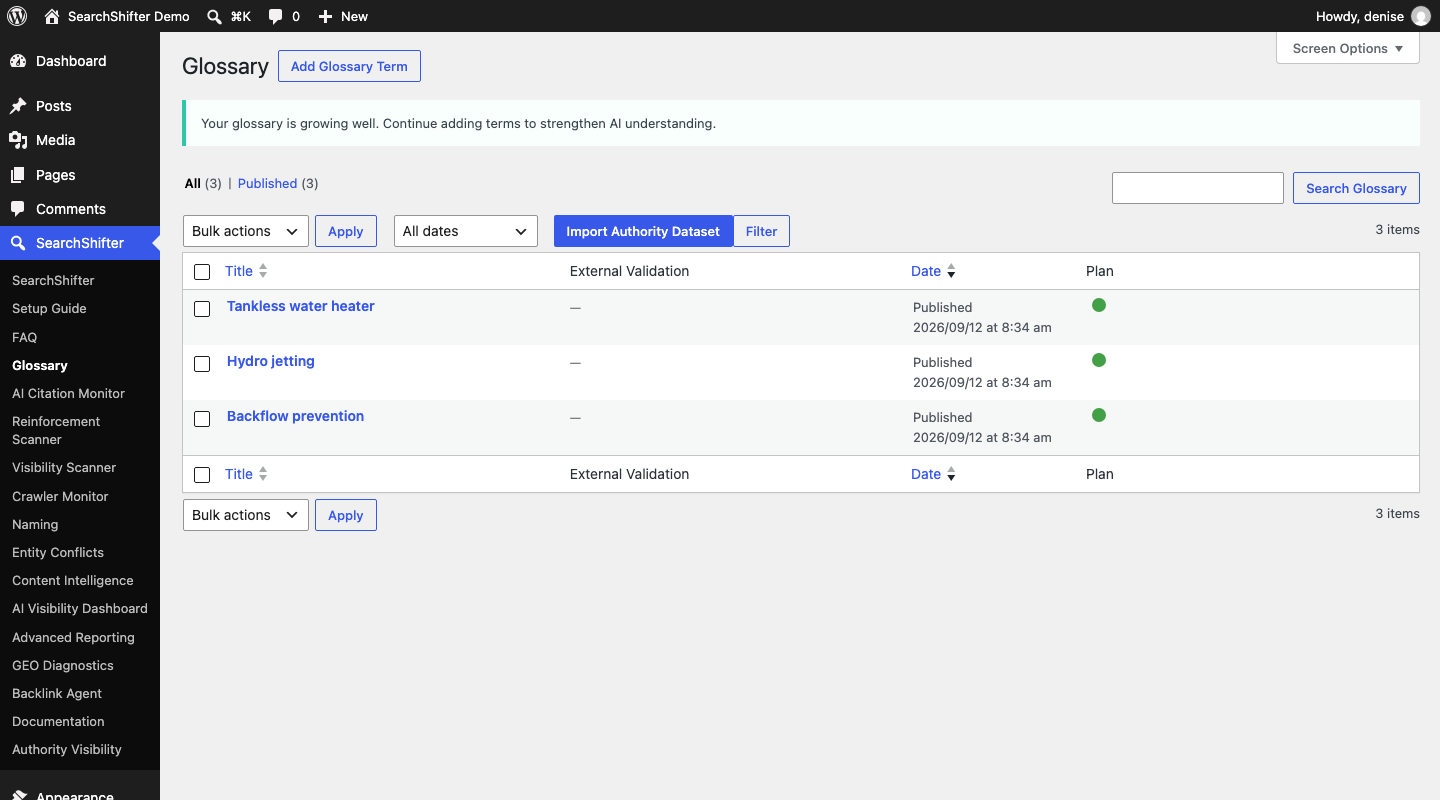
WordPress Glossary page showing list of terms with external validation status and dates
The Glossary screen, reached from SearchShifter in the WordPress menu.
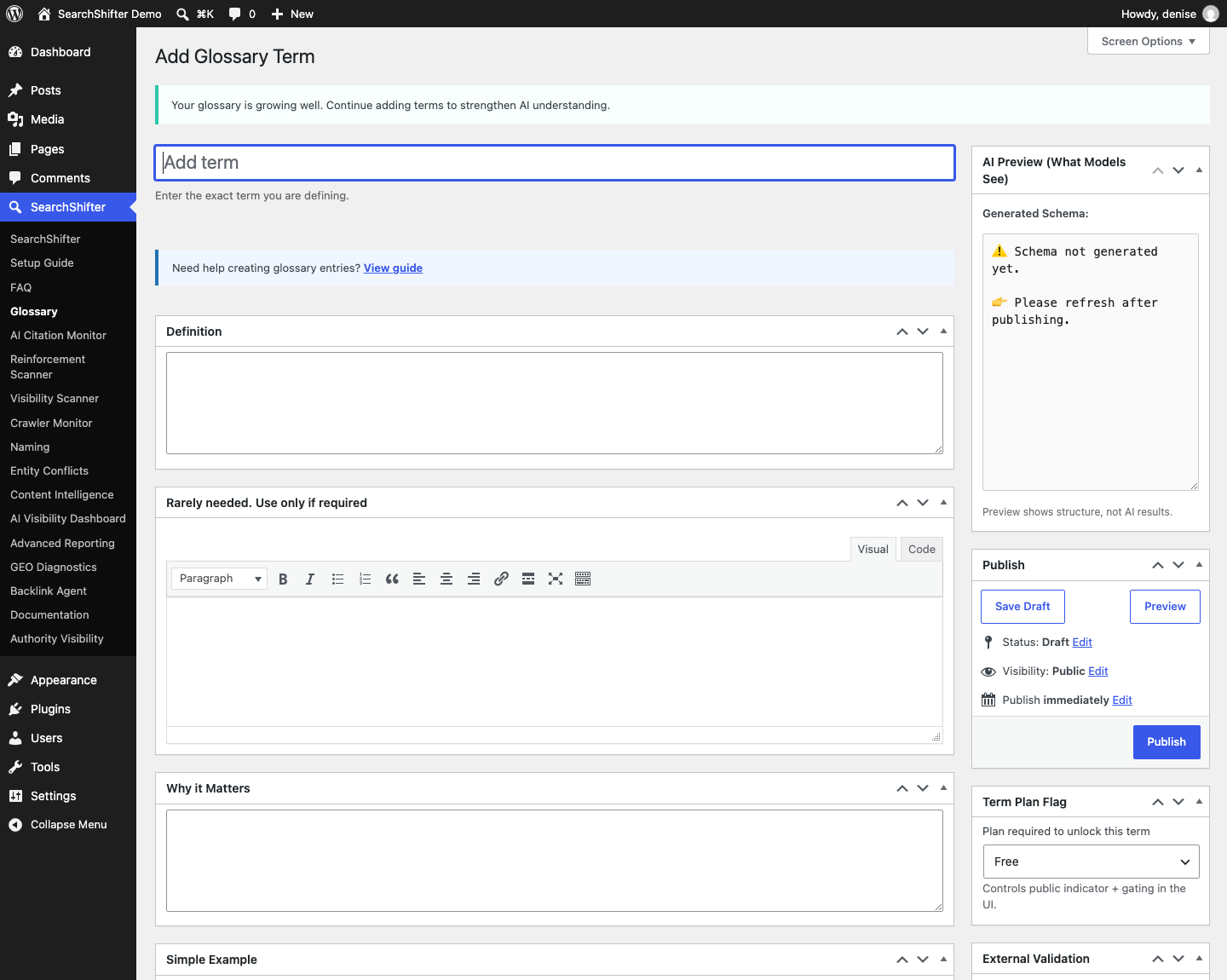
WordPress admin page for adding a glossary term with fields for term name, definition, importance level, and usage context
Adding a term: the exact term goes in the title, and the one-sentence definition goes in the Definition box.

STEP

3

Write your FAQ content

Create direct answers that AI systems can extract, and combine into responses

Rule 1 : Answer the question in the first sentence

Start the answer with a direct, complete response. Do not begin with context, explanation, or background

Rule 2 : Write one question with one clear intent

Ask the question the way a real person would ask it. Do not combine multiple questions or ideas into one

Rule 3 : Use the same wording everywhere

Use the same terms and phrasing every time you explain the same idea. Do not vary wording or introduce new versions of the same concep

Stop and Confirm

You opened this page from the SearchShifter™ plugin. If not, go back and open it there

You should see them

A page titled "SearchShifter™ Glossary" inside your WordPress dashboard

What you should see in Step 3

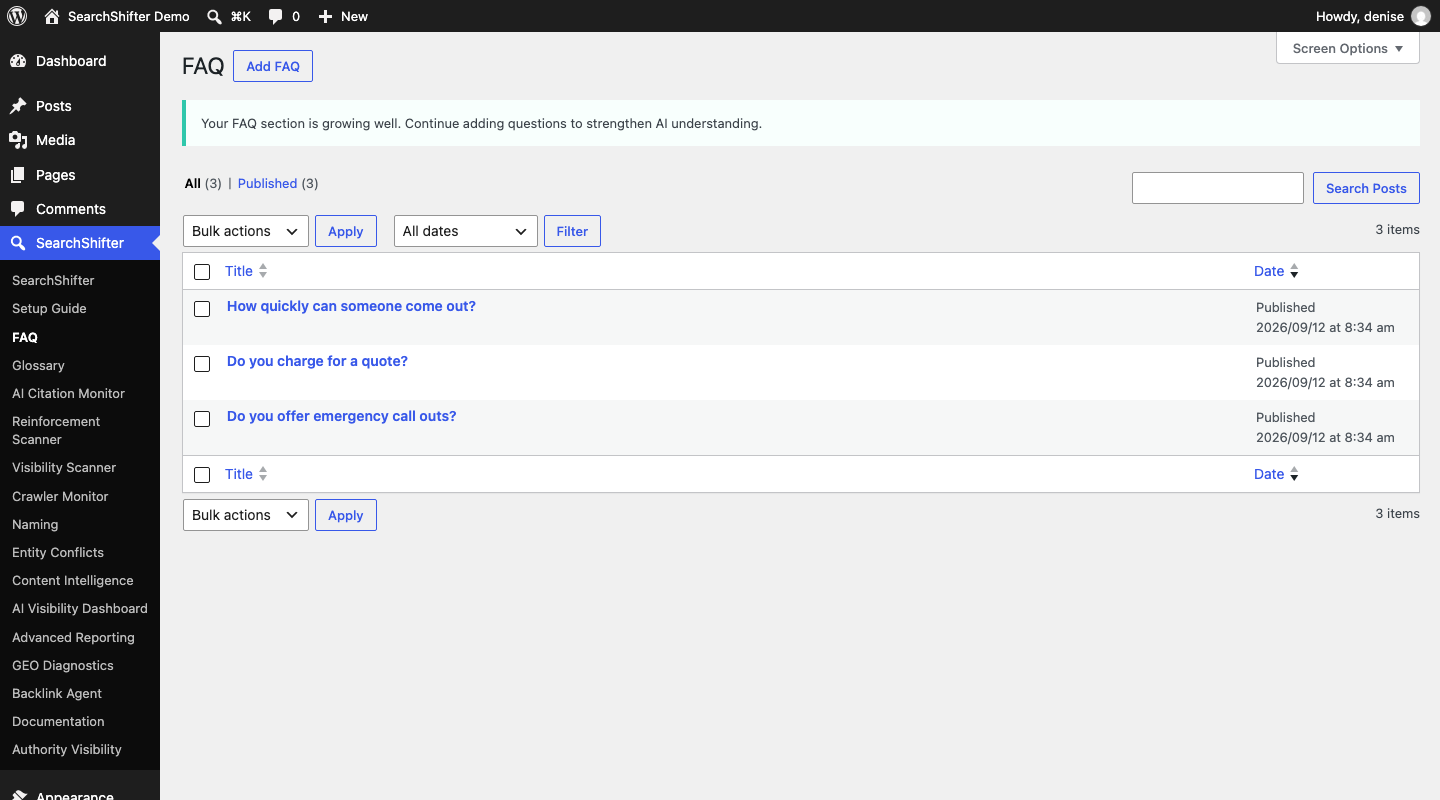
WordPress FAQ section management interface showing published questions with dates and bulk action options
The FAQ screen, reached from SearchShifter in the WordPress menu.
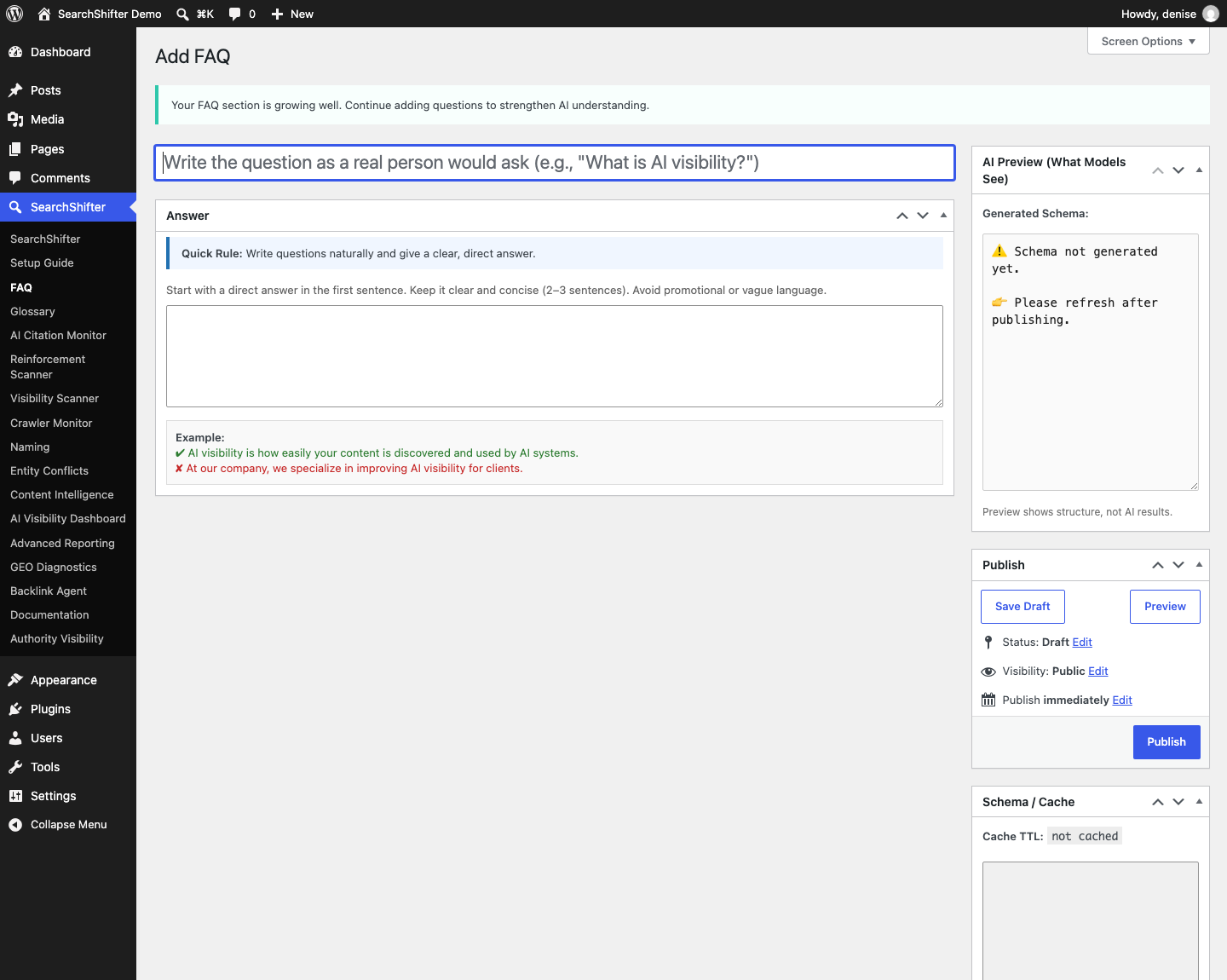
WordPress admin interface showing Add FAQ form with question and answer fields, AI preview panel, and publish options
Adding a question. The first sentence of the answer must answer it completely.

STEP

4

Link your Glossary terms across your site

Reinforce meaning across pages so AI systems can trust and reuse your content

Authority plans handle linking automatically. No action is required. Manual linking is only needed on the Free plan

Rule 1 : Use the exact glossary term wording every time

Use the same term exactly as it is defined. Do not use synonyms or variations anywhere on the site

Rule 2 : Link the term across multiple pages and contexts

Use the term in glossary, FAQ, and other pages. Repeat it in different places so the meaning is reinforced

Rule 3 : Link each term back to its glossary definition

Each page must include at least one link back to the glossary term. This connects all users of the term to a single, clear definition

Before you click publish, confirm the following

  • Each core term appears across multiple pages
  • The same wording is used every time
  • Each page links back to the glossary
  • Stop and Con Terms are used in multiple firm FAQs
  • Once complete, move to Validate and publish

Measuring it (Authority plans)

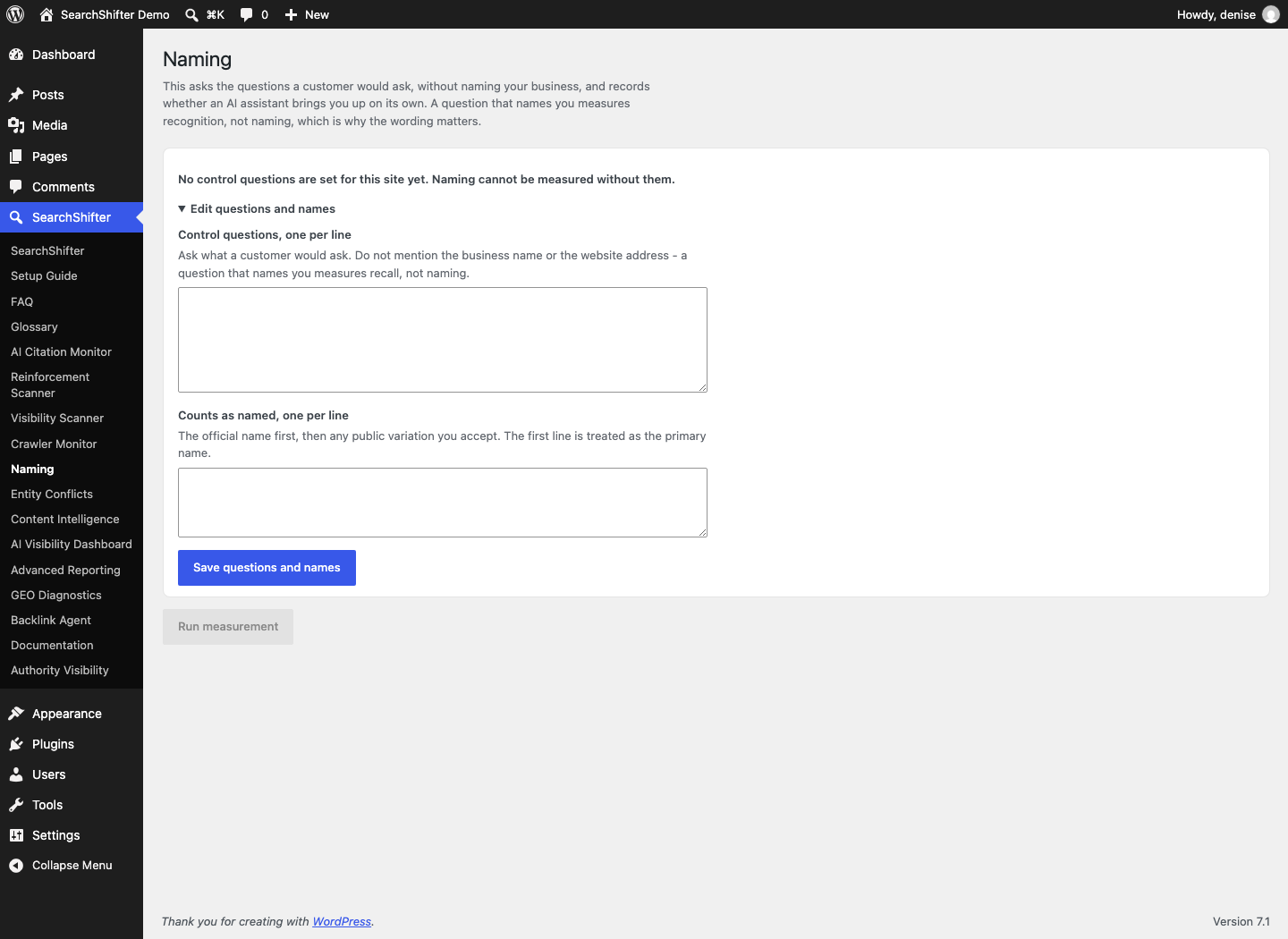
WordPress admin naming settings page with control questions and name fields for business configuration
The Naming screen asks the questions a customer would ask, without naming your business, and records whether an AI assistant brings you up on its own.

Download Free Plugin

Enter your email to receive your download link and setup guide instantly.

We’ll send your download link and updates to this address. Please use a valid email and check your spam or junk folder if the email doesn’t arrive.